
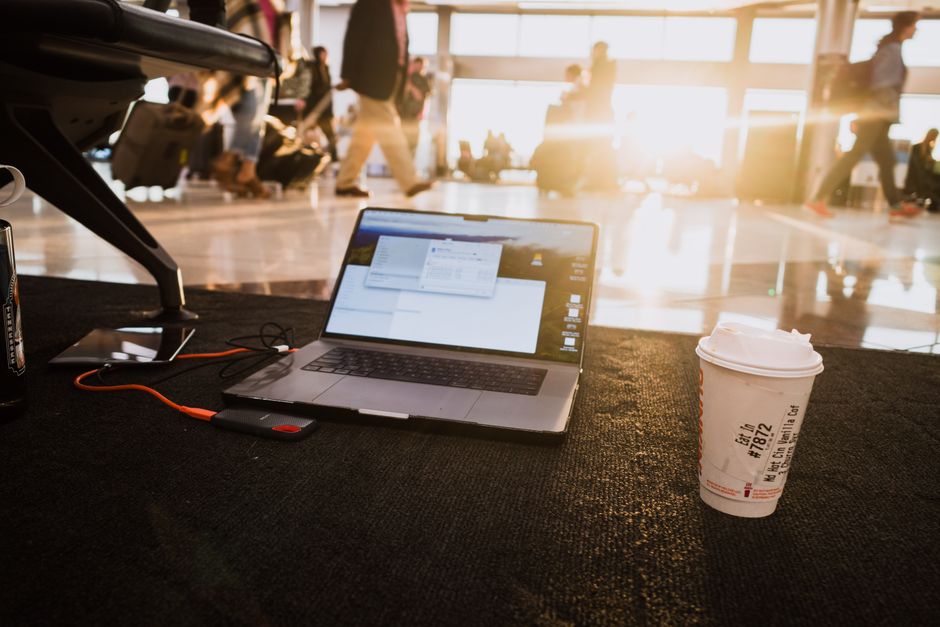
You booked an Airbnb with a dedicated workspace. The photos showed a clean desk and a comfortable chair. You arrive, open your laptop, and realize the desk is a glass dining table that wobbles, the chair is a backless stool, and the only outlet is behind the refrigerator. Your neck hurts by Tuesday. Your productivity tanks by Wednesday.
A productive mobile workspace is not about buying more gear. It is about buying the right gear that solves the physical problems you will actually face: bad ergonomics, dead batteries, unreliable internet, and terrible lighting on video calls. Most remote workers buy too much, too heavy, and too fragile. This guide fixes that.
The Core Setup: What Actually Earns You Money
Strip away the aesthetic Instagram setups. A mobile workspace has exactly three jobs: keep your body comfortable for 6+ hours, keep your devices powered, and keep you connected. Everything else is optional.
The Laptop: One Machine, No Compromises
For most remote workers in 2026, the MacBook Air M3 (13-inch, 16GB RAM, 512GB SSD, $1,299) is the right answer. It weighs 2.7 pounds. The battery runs 15-18 hours of real work: browser tabs, Slack, Zoom calls, spreadsheets. No fan, no noise, no heat. The M3 chip handles 4K video editing if you need it.
Windows users: the LG gram 14 (2026 model, 2.4 pounds, $1,099) is the closest equivalent. Lighter than the MacBook Air, 32GB RAM options, and a matte screen that works outdoors. The downside: battery life is 10-12 hours, not 15-18. Still, for a Windows machine, nothing else comes close in weight-to-performance ratio.
Skip the 16-inch laptops. You will hate carrying them through airports. Skip gaming laptops. They weigh 5+ pounds and die in 3 hours unplugged.
The Portable Monitor: When One Screen Is Not Enough
If you work with spreadsheets, code, or design files, a second screen pays for itself in one week. The LG gram View (16-inch, 990 grams, $349) is the best portable monitor in 2026. It connects via USB-C, draws power from your laptop, and the matte finish means no glare in a café. The included folio case doubles as a stand.
Cheaper option: the Arzopa Z1FC (15.6-inch, 1.7 pounds, $129). It is not as bright (300 nits vs 350) and the stand is flimsier, but it works. For $129, it is a no-brainer if you are on a budget.
Failure mode: do not buy a portable monitor without USB-C video support. Older models need HDMI plus a separate power cable. That is three cables. You will leave one in a hotel room and the monitor becomes a paperweight.
Power and Connectivity: The Unsexy Stuff That Saves Your Job
Dead laptop in a taxi at 4:45 PM before a 5:00 PM client call. No Wi-Fi in the Airbnb that looked fine in photos. These are the moments that separate prepared remote workers from panicked ones.
The Power Bank That Actually Works
The Anker 737 Power Bank (24,000mAh, 140W output, $149) is the current king. It charges a MacBook Air from 0% to 50% in about 40 minutes. It charges a phone 4-5 times. It is the size of a thick smartphone and weighs 1.4 pounds. The digital display shows exactly how much juice is left, so you are never guessing.
Do not buy cheap no-name power banks from airport kiosks. They lie about capacity. A $30 power bank that says 30,000mAh often delivers 8,000mAh of real power. The Anker costs more because it actually does what it says.
Portable Wi-Fi: When the Airbnb Lies
Airbnb hosts often say “fast Wi-Fi” when they mean “the router is in the next room and sometimes works.” For backup internet, the GlocalMe Numen Air 5G (unlocked, $199 plus data plans) is the most flexible option. It works in 140+ countries without a local SIM. You buy data through their app. It is not cheap (about $3-5 per GB), but it has saved more client calls than I can count.
Alternative: buy a local SIM card with a generous data plan and use your phone as a hotspot. Cheaper, but it drains your phone battery and some carriers throttle hotspot speeds. The GlocalMe is a dedicated device that does one job well.
Ergonomics Without a Desk: The 20-Minute Setup
Here is a bold opinion: most portable laptop stands are garbage. They are heavy, they wobble, and they put your screen at a weird angle. The only one worth buying is the Roost Stand V3 (3rd generation, 170 grams, $89). It folds to the size of a candy bar, weighs less than a phone, and raises your laptop screen to eye level. Pair it with a compact keyboard and mouse, and you have a real ergonomic setup anywhere.
The keyboard that makes sense for travel: Logitech MX Keys Mini (Bluetooth, backlit, 506 grams, $99). It is small enough for a café table, the keys feel like a desktop keyboard, and it connects to three devices. The battery lasts 10 days with backlighting, 5 months without.
Mouse: Logitech MX Anywhere 3S (99 grams, $79). Works on glass, has a scroll wheel that flies through long documents, and charges via USB-C. Skip the Apple Magic Mouse. It charges from the bottom and is unusable while charging.
What to Skip: The Gear You Do Not Need
- Portable desk lamps. Your laptop screen is already a light source. If you need more light for video calls, sit facing a window. A dedicated lamp is dead weight.
- Mechanical keyboards. They weigh 2-3 pounds and annoy everyone in the café. The MX Keys Mini is quieter and 60% lighter.
- Laptop cooling pads. Modern laptops throttle performance before they overheat. A cooling pad adds 2 pounds and does almost nothing.
- Travel routers. The GlocalMe does the same job better. A separate travel router is redundant unless you have very specific networking needs.
- Portable printers. You are a remote worker, not a mobile notary. Print at a local shop for the rare times you need paper.
Comparison: Three Budget Levels That Actually Work

You do not need to spend $3,000 on gear. Here are three realistic setups, from budget to premium, with real prices as of 2026.
| Item | Budget Setup | Mid-Range Setup | Premium Setup |
|---|---|---|---|
| Laptop | Used MacBook Air M2 ($799) | MacBook Air M3 16GB ($1,299) | MacBook Pro 14 M4 ($1,999) |
| Second Screen | None (use iPad as sidecar) | Arzopa Z1FC ($129) | LG gram View ($349) |
| Keyboard | Logitech K380 ($39) | Logitech MX Keys Mini ($99) | Logitech MX Keys Mini ($99) |
| Mouse | Logitech M240 Silent ($19) | Logitech MX Anywhere 3S ($79) | Logitech MX Anywhere 3S ($79) |
| Laptop Stand | Nulaxy foldable stand ($25) | Roost Stand V3 ($89) | Roost Stand V3 ($89) |
| Power Bank | Anker 533 10,000mAh ($49) | Anker 737 24,000mAh ($149) | Anker 737 24,000mAh ($149) |
| Backup Internet | Phone hotspot with local SIM | GlocalMe Numen Air 5G ($199) | GlocalMe Numen Air 5G ($199) |
| Noise-Cancelling Headphones | Anker Soundcore Space One ($99) | Sony WH-1000XM5 ($328) | Sony WH-1000XM5 ($328) |
| Total | $1,030 | $2,371 | $3,291 |
The budget setup works for most people. The mid-range setup is the sweet spot: you get the screen, the proper stand, and the power bank that can save your job. The premium setup only makes sense if you edit video or run heavy design software.
One more thing: buy a good bag. The Peak Design Everyday Backpack 20L ($279) fits all of this gear with room for a jacket and a water bottle. The Tomtoc 40L travel backpack ($89) is the budget alternative. A broken zipper on a cheap bag costs more than the bag itself when your laptop hits the pavement.